
Send a quote and get it accepted
Email a quote, what your customer sees, and what happens when they accept.
Check it first
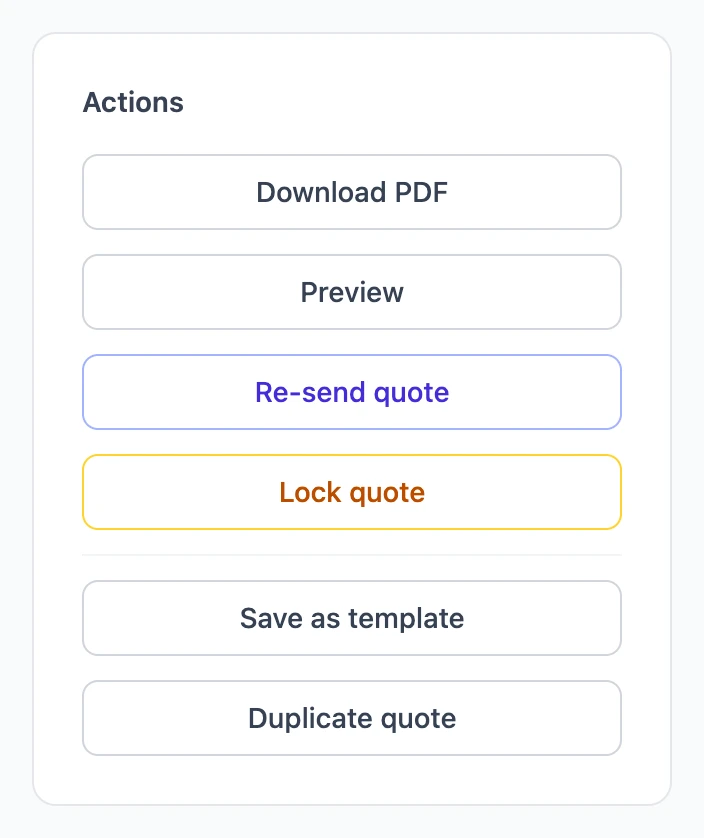
- Preview opens the quote exactly as your customer will see it, in a new tab.
- Download PDF saves the printable copy. It can take a few seconds.
Logo, colors and layout come from your settings; see Customize how quotes look.
Send the quote
- Make sure the Bill to contact has an email address.
- Under Actions, choose Send quote and confirm.
Your customer gets an email with a link to the quote and the PDF attached, and the quote is marked Sent with the date. Sent a quote to a contact with no email? It is still marked sent, and you can share the PDF yourself.
Send it again
Changed something, or the customer lost the email? Choose Re-send quote. The confirmation names the address it will go to.
How your customer accepts
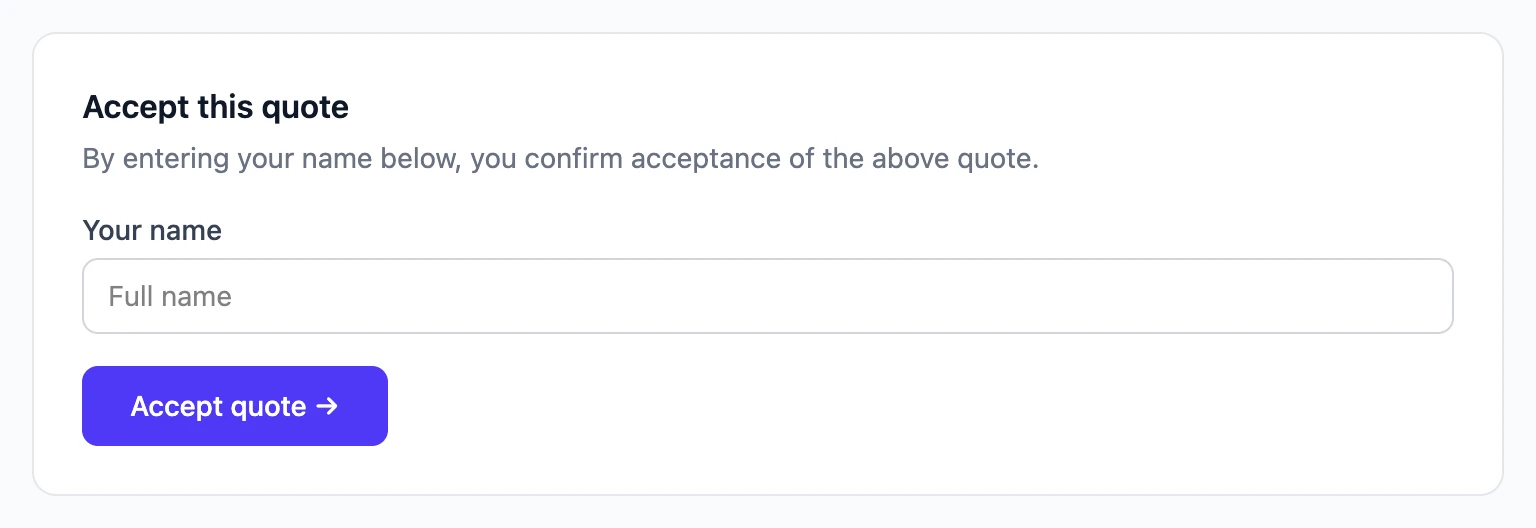
The link opens the quote on any device. At the bottom, the customer types their name and chooses Accept quote →. The quote is then marked Accepted with the date, and the customer sees a confirmation.
Know when they have read it
The first time your customer opens the link, the quote moves from Sent to Viewed and we email whoever the quote was sent from. Until then the quote detail page says Not opened yet, so a quote nobody has read is easy to tell apart from one that was read and ignored.
Later opens are not emailed — a customer who reads a quote four times is one piece of news, not four — but they are still counted, so the page can tell you they came back. Automated link scanners are not counted, and neither is opening your own quote link while signed in.
Text the customer from your phone
Open a sent quote on your phone and the Actions card has a Text customer button. It opens your own messaging app, addressed to the customer on the quote, with a message already written for whatever the quote is doing — chasing one nobody has opened reads differently from following up on one they read three days ago. Tap Preview message first if you want to see it before your phone does.
Prycebook never sends the text. It only writes it and hands it to your phone, so nothing is sent until you tap send, and you can edit it first.
The button appears only on a narrow screen, since a text has to be sent from a phone, and only when the customer on the quote has a phone number. If it is missing, the card says which contact needs a number.
To change the wording, go to Settings → Communication. Everyone can set their own, and an admin sets the company default that the rest of the team gets. The messages guide lists everything you can drop into a message.
What the statuses mean
- Draft: not sent yet.
- Sent: emailed to the customer, who has not opened it yet.
- Viewed: the customer has opened the link at least once. The quote detail page shows when they first opened it, and, if they came back, how many times and when they last looked.
- Accepted: the customer accepted it.
- Locked: no longer editable, and no longer open for acceptance.
- Declined: the customer said no, and you marked it declined.
- Expired: sent but not answered in time. That means its expiration date has passed or, if it has none, it hasn't been updated for 30 days (you can change the number of days in Settings). Customers can't accept an expired quote.
- Estimate: shown alongside the others when the quote is marked as an estimate.
Filter the Quotes list by status to see everything waiting on a customer.
Mark a quote declined
When a customer tells you no, open the quote and choose Mark declined. You can add a reason, which only your team sees. The customer's link then says the quote was declined. If they change their mind, choose Reopen quote and it goes back to Sent.
Lock a quote
Choose Lock quote when the job is settled, or to withdraw an offer. Nobody can change a locked quote, and a customer who has not accepted it yet can no longer do so.