
Discounts, taxes and fees
Discounts and fees on the subtotal, and setting up sales tax.
Adjustments change a quote's total after the line items: a discount, a trip charge or a card fee.
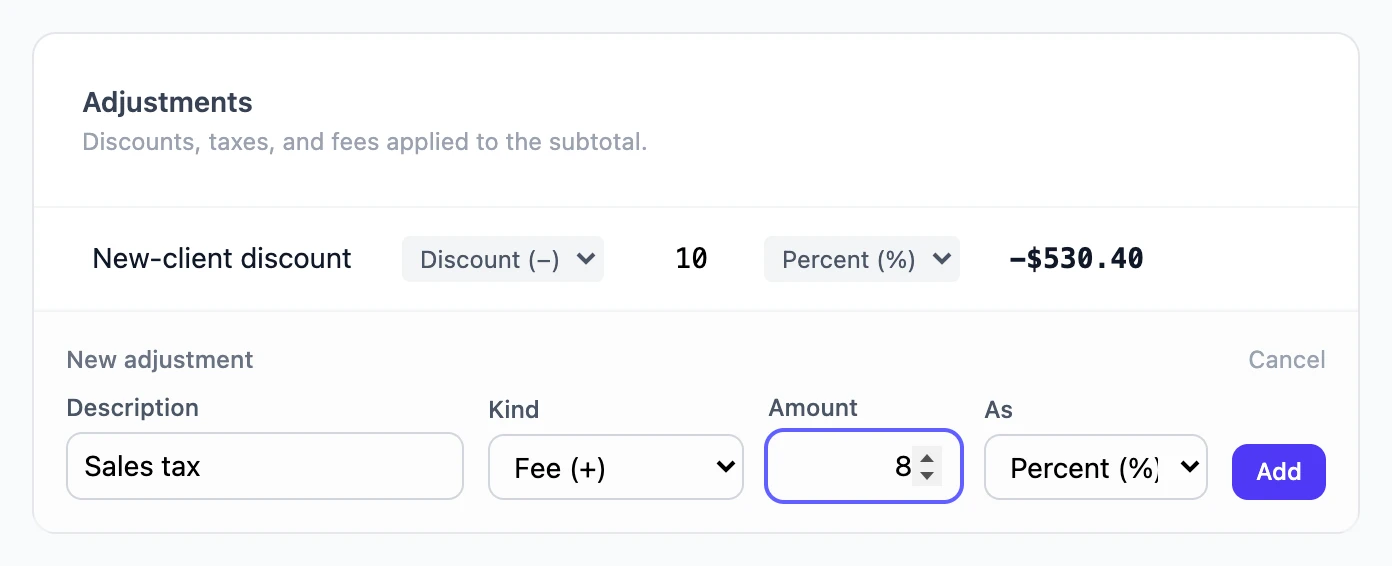
Add an adjustment
- Under Adjustments on the quote, choose Add adjustment.
- Enter a Description the customer will see, like "Spring discount" or "Trip charge".
- Choose the Kind: Fee (+) adds to the total, Discount (−) takes away from it.
- Enter the Amount and choose whether it is Flat ($) or Percent (%). Percentages are whole numbers.
- Choose Add.
The effect in money shows beside each adjustment, and Totals updates straight away. Change any part of an adjustment in place, or choose Remove.
How percentages are worked out
Every percentage is a percentage of the subtotal, the sum of the line items, not of the running total. A 10% discount and 8% tax on a 1,000.00 subtotal are −100.00 and +80.00, whatever order they are in.
Hidden adjustments
The eye button on an adjustment hides it from the customer. The total does not change: the adjustment's amount is spread across the visible lines instead of being listed. See Hide line items from the customer.
Sales tax
Tax is not an adjustment. It has its own setting, because it only applies to some of what you sell and it has to be worked out after any discount — neither of which an adjustment can do.
- In Settings, under Sales tax, enter your rate and what to call it on the quote ("Sales tax", "VAT", "GST").
- Open each item that should be taxed and tick Charge sales tax on this item.
From then on, a quote shows its own tax line between the adjustments and the total, with the rate beside it. Nothing is taxed until you tick an item, so turning the rate on does not change quotes you have already built.
- Only the items you ticked are taxed. A quote with taxable parts and untaxed labour is taxed on the parts only.
- Discounts come first. Take 50% off a quote and the tax halves with it, because you tax what you actually charged.
- A quote records the rate when you send it. Change your rate later and quotes already sent keep the figure the customer agreed to; drafts pick up the new rate.
- Each item records its own taxability when you add it to a quote. Changing an item in your pricebook will not retax a quote you have already built.